Your physical library, beautifully organized & easily lent.
Catalog your physical book collection in seconds. Generate printable QR spine tags, and use your iPhone camera to scan books for instant check-outs and returns.
Explore Paperwood screen by screen.
Click between tabs below to inspect how Paperwood manages book catalogs, real-time optical scanning, and printable QR label sheets on iOS.
Browse, search, and track availability at a glance
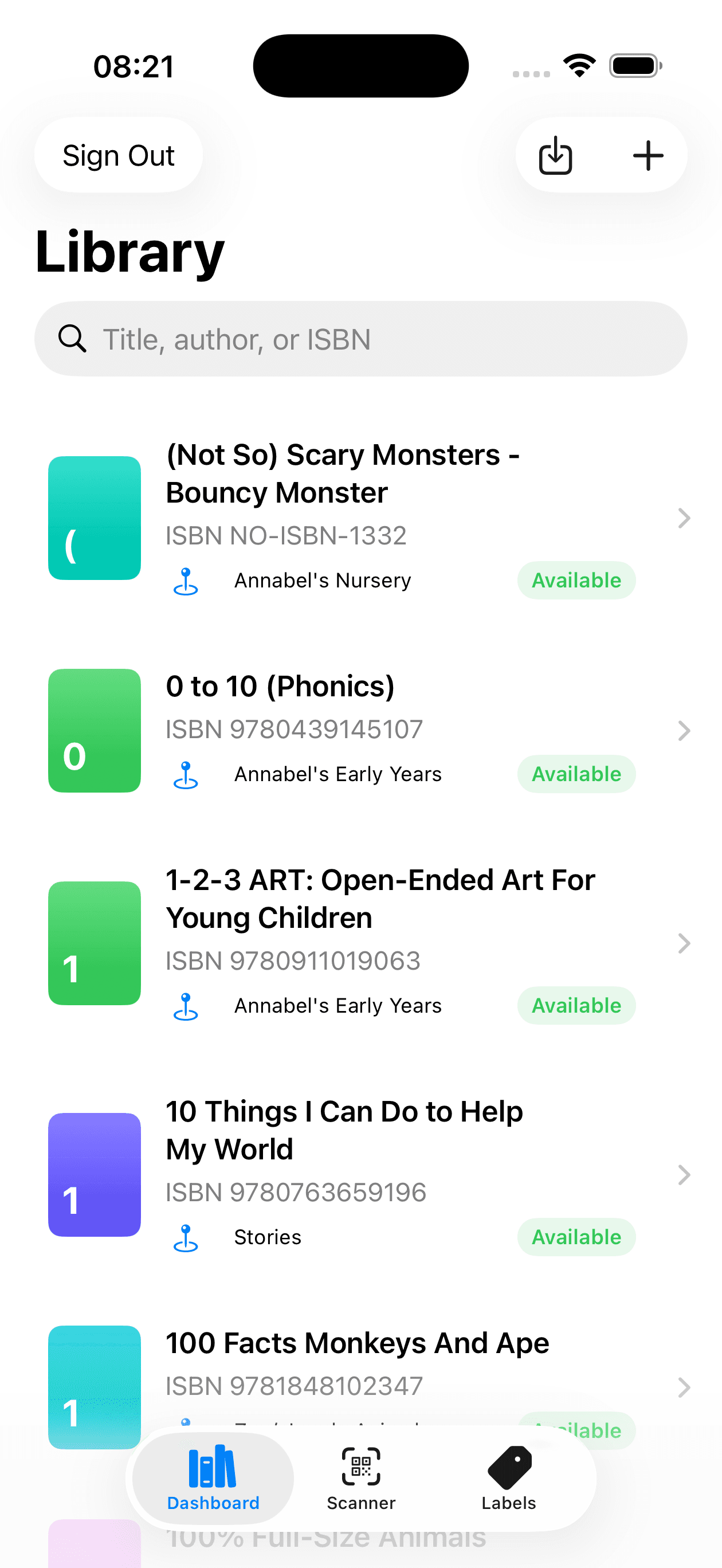
Keep your entire physical book collection organized with custom spine color covers, shelf locations (e.g., Nursery, Early Years, Stories), and instant search by title, author, or ISBN.
Visual Spine Coding
Color-coded book badges and numbering make finding physical books on your shelves effortless.
Shelf & Room Assignment
Categorize by custom locations like 'Annabel's Nursery' or 'Study Shelf #2'.
Real-time Status Pills
Instantly see whether a book is 'Available' or currently lent out.
Designed specifically for tactile, physical book management.
Know exact shelf locations and availability in real time.
Paperwood gives every book a distinct color-coded spine and tags it to your custom physical shelves (e.g., "Annabel's Nursery", "Annabel's Early Years", or "Stories").
- Instant status pills: See "Available" or "Checked Out" at a glance.
- Global search: Filter across thousands of books by title, author, or ISBN.
- One-tap import/export: Backup and sync across your devices with secure cloud storage.
Instant check-ins, check-outs, and batch book scanning.
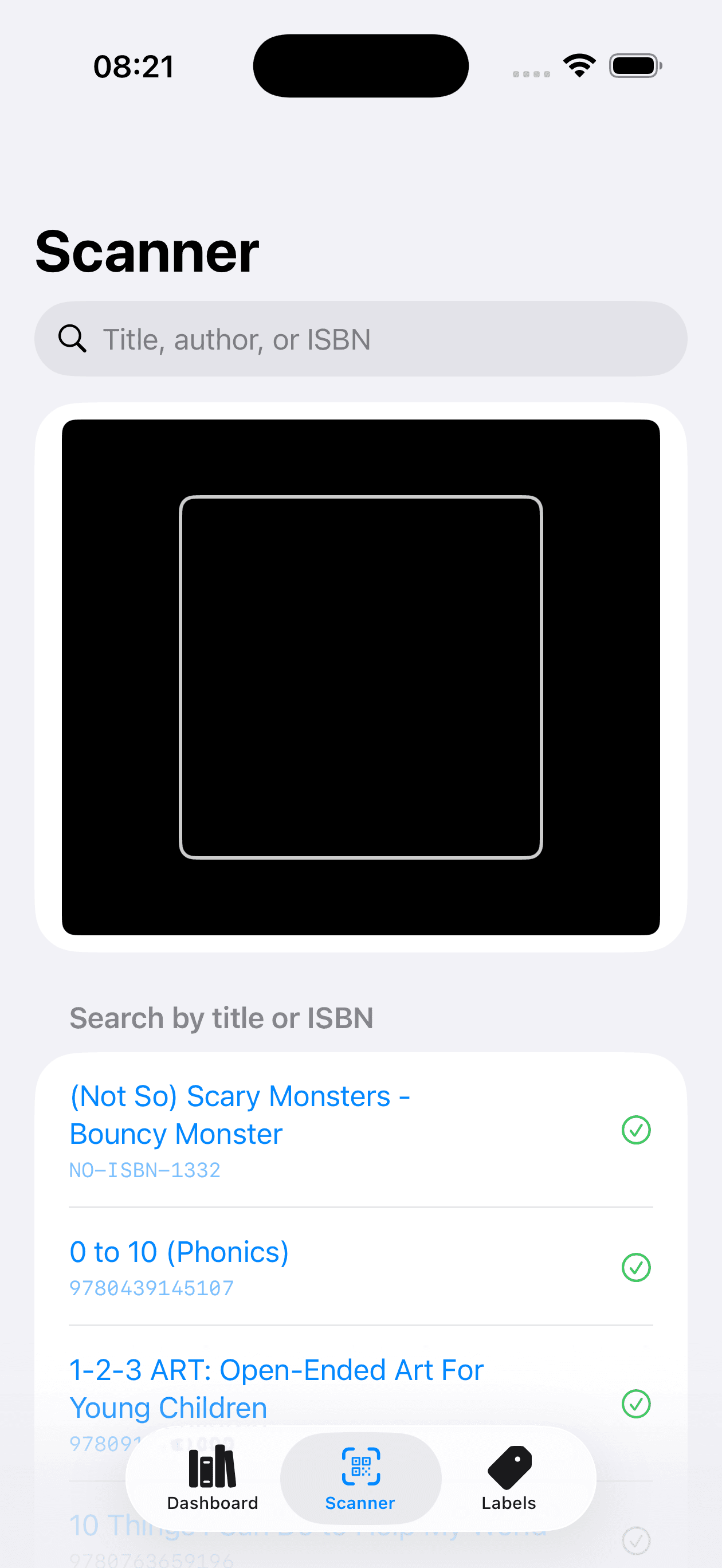
Turn your iPhone into an ultra-fast barcode and QR scanner. Point your camera at any book spine or cover tag to queue check-outs with instant green confirmation checkmarks.
- Visual Viewfinder: Ultra-responsive 60 FPS Apple Vision scanning engine.
- Queue confirmation: Live list showing each verified scan.
- Manual fallback: Search title or ISBN if barcode is torn or missing.
Generate multi-page PDF sheets ready for AirPrint.
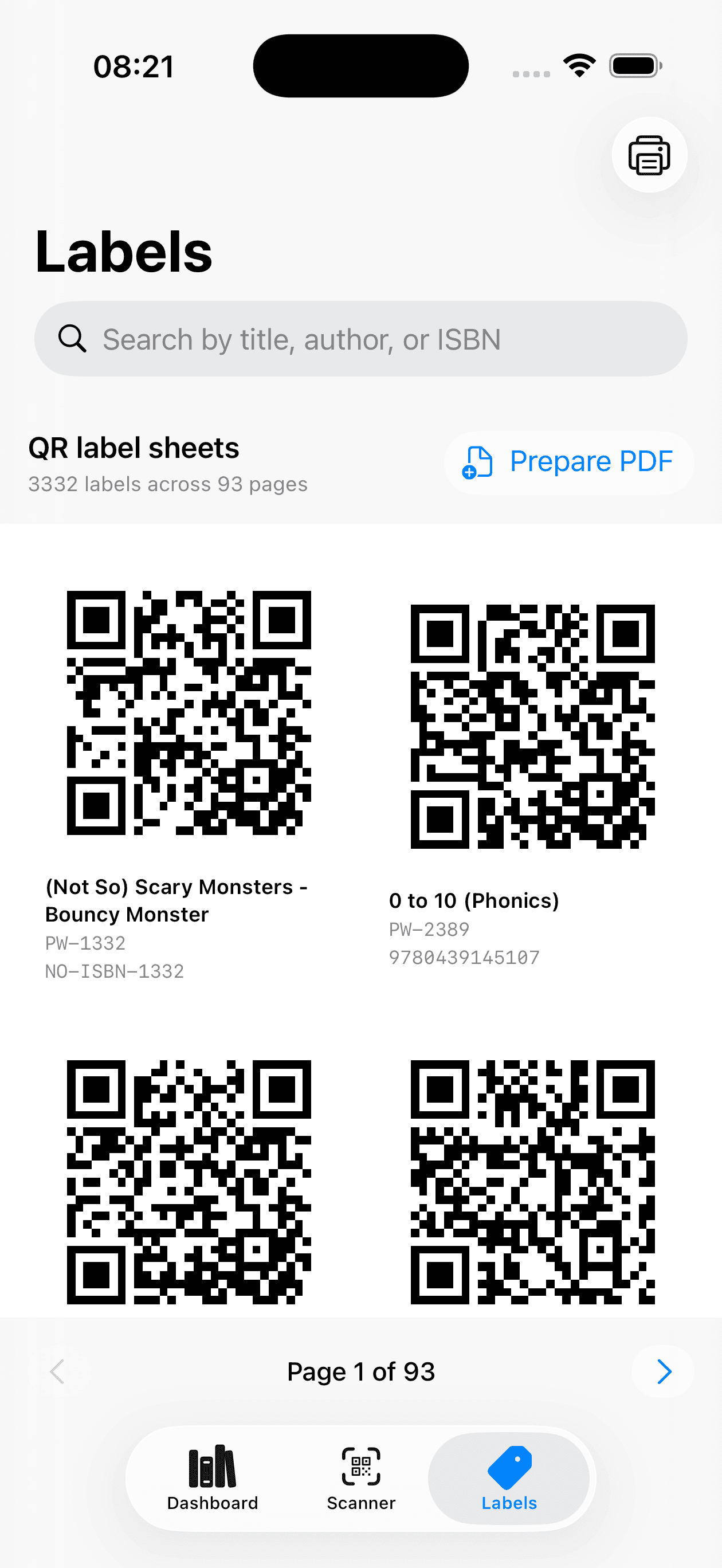
Paperwood automatically prepares clean, high-contrast QR code grids formatted with book titles, catalog keys, and ISBNs. Export ready-to-print PDFs for hundreds or thousands of books with a single tap.
- High-volume ready: Scales effortlessly from 50 to 3,300+ label sheets.
- Direct AirPrint: Print from iPhone or iPad directly to wireless printers.
- Standard sticker compatibility: Compatible with Avery, Brother, and Dymo sheets.
From bookshelf stack to organized library.
Import Books
Scan ISBN barcodes with your camera or import your existing spreadsheet / Goodreads CSV. Paperwood automatically retrieves title, author, and metadata.
Print & Stick QR Tags
Tap "Prepare PDF" in the Labels tab to generate sheets of QR spine tags. Print them via AirPrint and place them on your book spines or inside covers.
Scan to Loan & Return
Whenever a book is borrowed or returned, simply open the Scanner tab. Point at the QR tag to log the check-out and update inventory in real time.
Frequently Asked Questions
How do I print the QR label sheets?
Inside Paperwood, go to the Labels tab and tap "Prepare PDF". The app generates a formatted multi-page PDF compatible with standard adhesive label sheets and thermal label printers. You can send it directly to any AirPrint wireless printer or save/share the PDF.
How does check-out scanning work?
Open the Scanner tab and aim your iPhone camera at any book's Paperwood QR code. The app identifies the book in milliseconds with instant optical feedback and lets you mark it checked out or returned with a single tap.
Is my library data private?
Yes. Your collection data is encrypted and stored securely in the cloud, syncing seamlessly across your devices. We do not sell your personal information, share your records, or run advertising trackers. Read our full Privacy Policy.
What devices does Paperwood support?
Paperwood is built natively for iPhone and iPad running iOS 17.0 or later.

Bring order to your shelves today.
Download Paperwood on the iOS App Store and start cataloging, printing QR tags, and managing book check-outs in minutes.
Requires iOS 17.0 or later • Compatible with iPhone & iPad